Lock the Display Box Before an Aspect Ratio Calculation Turns Into a Crop Surprise
Build an image sizing workflow around the real display box, then decide whether to fit, crop, or add space before exporting an asset.
Open Aspect Ratio Calculator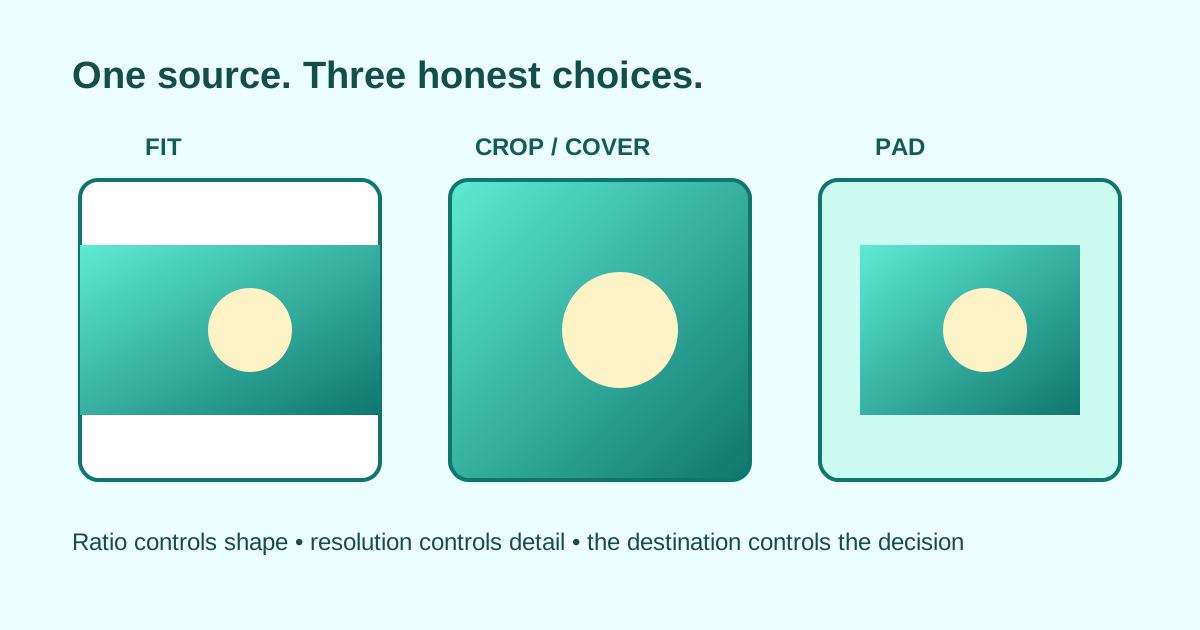
A landscape photo is resized to the requested width, but the publishing slot is square. The image is not distorted; the subject is cut off by the destination's cover behavior. The missing step was choosing how two different aspect ratios should meet.
Start with the destination, not a familiar preset
Record the exact width and height of the real slot. Reduce that pair to understand its aspect ratio, then enter one known dimension in Aspect Ratio Calculator to find the proportional companion dimension. This identifies the undistorted size; it does not yet decide how empty space or overflow should be handled.
A practical aspect-ratio workflow
- Write down the destination box and any safe area for text or faces.
- Calculate the proportional source size with Aspect Ratio Calculator.
- Choose contain when every pixel must remain visible, accepting empty space.
- Choose cover or crop when the box must be filled, then reposition the focal subject deliberately.
- Resize and export one final asset, then preview it inside the actual slot rather than only as a standalone image.
Do not confuse ratio with resolution
Two images can both be 16:9 while one is too small for a sharp display. Aspect ratio describes shape; pixel dimensions describe available detail. Check both before downloading the final asset.
FAQ
What is the difference between aspect ratio and resolution?
Aspect ratio is the proportional relationship between width and height. Resolution is the actual pixel count, such as 1920 by 1080.
How do I resize without stretching?
Keep the width and height proportional. Change one dimension and calculate the other instead of editing both independently.
Should I fit or crop an image?
Fit when all content must remain visible. Crop or cover when the destination must be filled and you can safely remove edges around the focal subject.