Clean a PDF Packet by Reordering, Removing, and Extracting Pages Before the Final Share
Use a three-tool PDF workflow to put pages in reading order, remove unwanted pages, and extract the approved range with a download exit after every check.
Open Reorder PDF Pages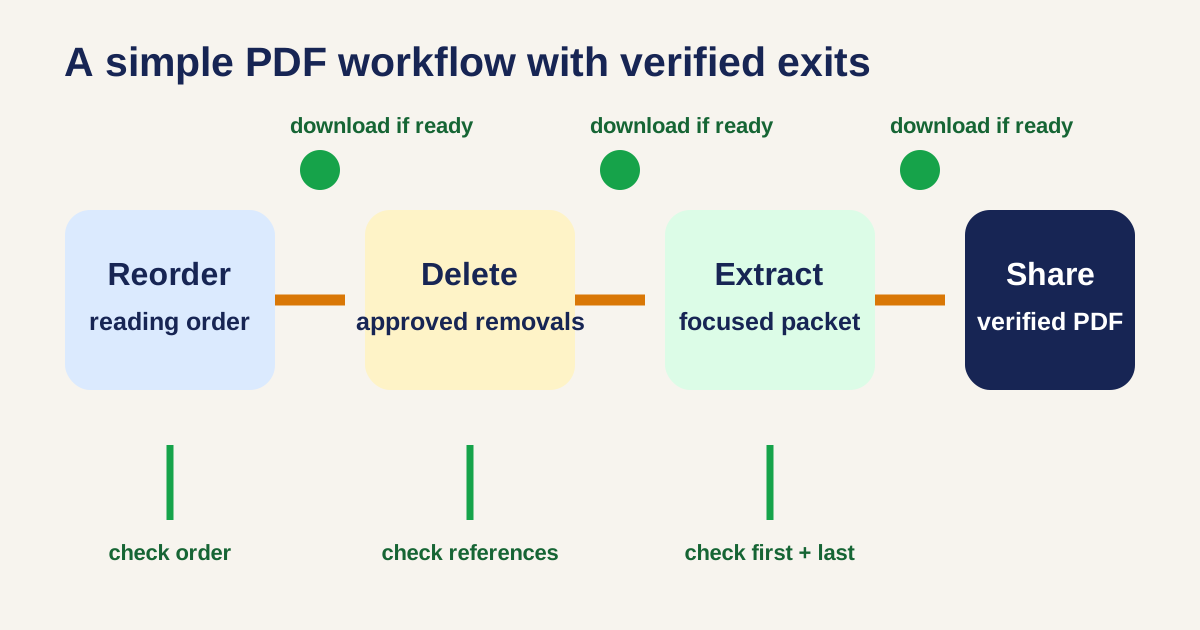
A packet assembled from scans, exhibits, and supporting documents is almost ready to send, except two pages are out of order, a blank scan slipped in, and only one section belongs to the recipient. Make those changes in an order that preserves a clear review trail: arrange the whole packet, remove obvious exclusions, then extract the approved share copy.
Tool order, checks, and download exits
- 1. Reorder PDF Pages: put the complete packet in reading order first. Check covers, exhibit boundaries, and references to neighboring pages; download here if order was the only problem.
- 2. Delete PDF Pages: remove blank scans, duplicates, or pages that are clearly outside the approved packet. Check that page references and required attachments still make sense; download here if the cleaned packet is the deliverable.
- 3. Extract PDF Pages: create the smallest contiguous or selected range the recipient actually needs. Open the output and check its first page, last page, total count, and orientation before the final download.
- Stop after any verified output. Continue only when a later step answers a documented need rather than because the tool is available.
Choose a page-management path instead of a conversion detour
Google Trends related-query checking for PDF work surfaced “split PDF” and “PDF to JPG” as adjacent terms. This workflow uses split PDF logic when the goal is smaller, reviewable PDF packets; it does not send the document through PDF to JPG unless the recipient truly needs image files. Keeping the packet as PDF preserves the document handoff when visual conversion would add no value.
Related UtilFlow links
Reorder PDF Pages establishes reading order, Delete PDF Pages removes approved exclusions, and Extract PDF Pages creates the focused share copy. Use PDF Page Counter after extraction when a portal or recipient has a page-limit rule.
FAQ
Why reorder before deleting pages?
Ordering the full packet first makes it easier to see context and identify whether a page is truly a duplicate, blank, or out of scope.
When should I stop and download?
Stop after the first verified result that meets the recipient’s actual request. More transformations create more opportunities for avoidable errors.
Is extracting pages the same as secure redaction?
No. Extraction creates a separate file from selected pages. Use an approved redaction process when information must be removed from pages that remain in a shared document.
When should I use PDF to JPG instead?
Use it only when the next recipient or system requires image files. For a clean document packet, keep the PDF form and use the page-management workflow.