Start From the Destination Box Before Image Resizing Creates the Right Pixels for the Wrong Slot
Choose image dimensions from the actual display box, preserve or intentionally change aspect ratio, and inspect the resized output at delivery size.
Open Image Resizer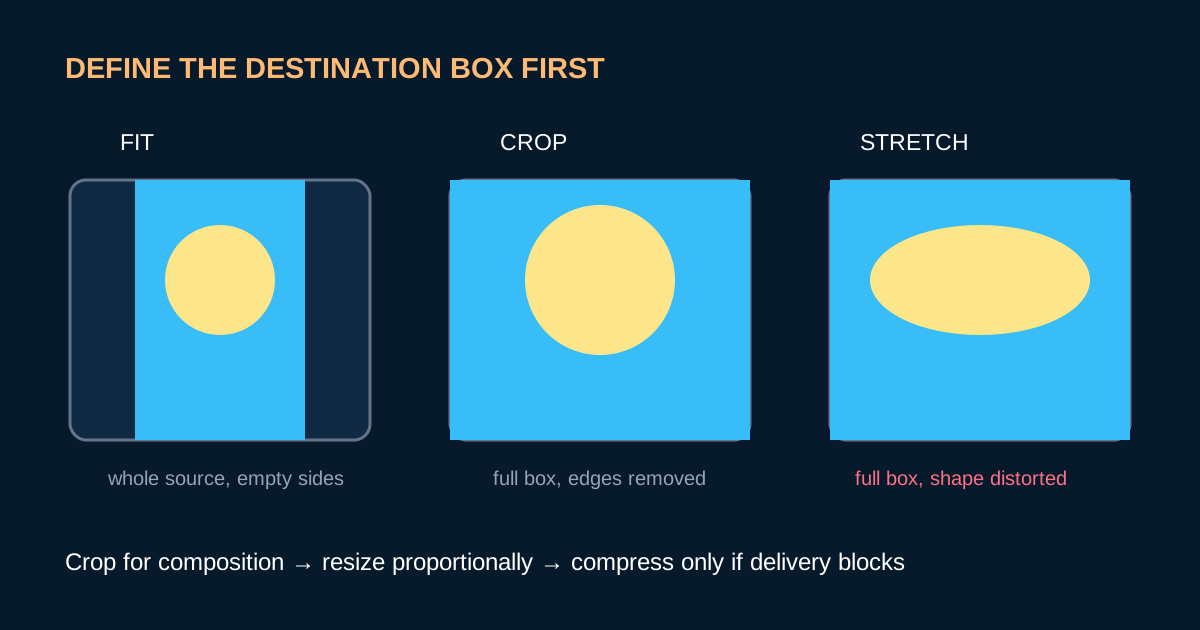
A banner slot is 1200 by 630 pixels, but the source is a tall portrait. Typing both target dimensions without choosing a fit policy produces a stretched face, while preserving the ratio may leave a file that still does not fit the layout.
The box comes before the pixel count
- Measure the actual display or upload box, including its aspect ratio.
- Choose whether the whole source must remain visible or whether edge cropping is acceptable.
- Crop first when composition must match a different ratio.
- Use Image Resizer with aspect ratio locked for proportional scaling.
- Preview at destination size and inspect the smallest important text, face, or product detail.
Resize once from the best available source
Repeatedly resizing previously exported copies compounds softness and makes provenance harder to track. Keep the source, create one destination-specific derivative, and compress only that delivery copy if file weight remains a separate blocker.
Related UtilFlow links
Use Aspect Ratio Calculator to compare boxes, Image Cropper to set composition, Image Resizer for the final dimensions, and Image Compressor only when file size still blocks delivery.
FAQ
Why does my resized image look stretched?
The target width and height use a different aspect ratio from the source and proportional scaling was not preserved.
Should I crop or resize first?
Crop first when the destination ratio changes; then resize the approved composition to its delivery dimensions.
Does a smaller image always need compression?
No. Download after resizing if the file already meets the real upload or transfer limit.